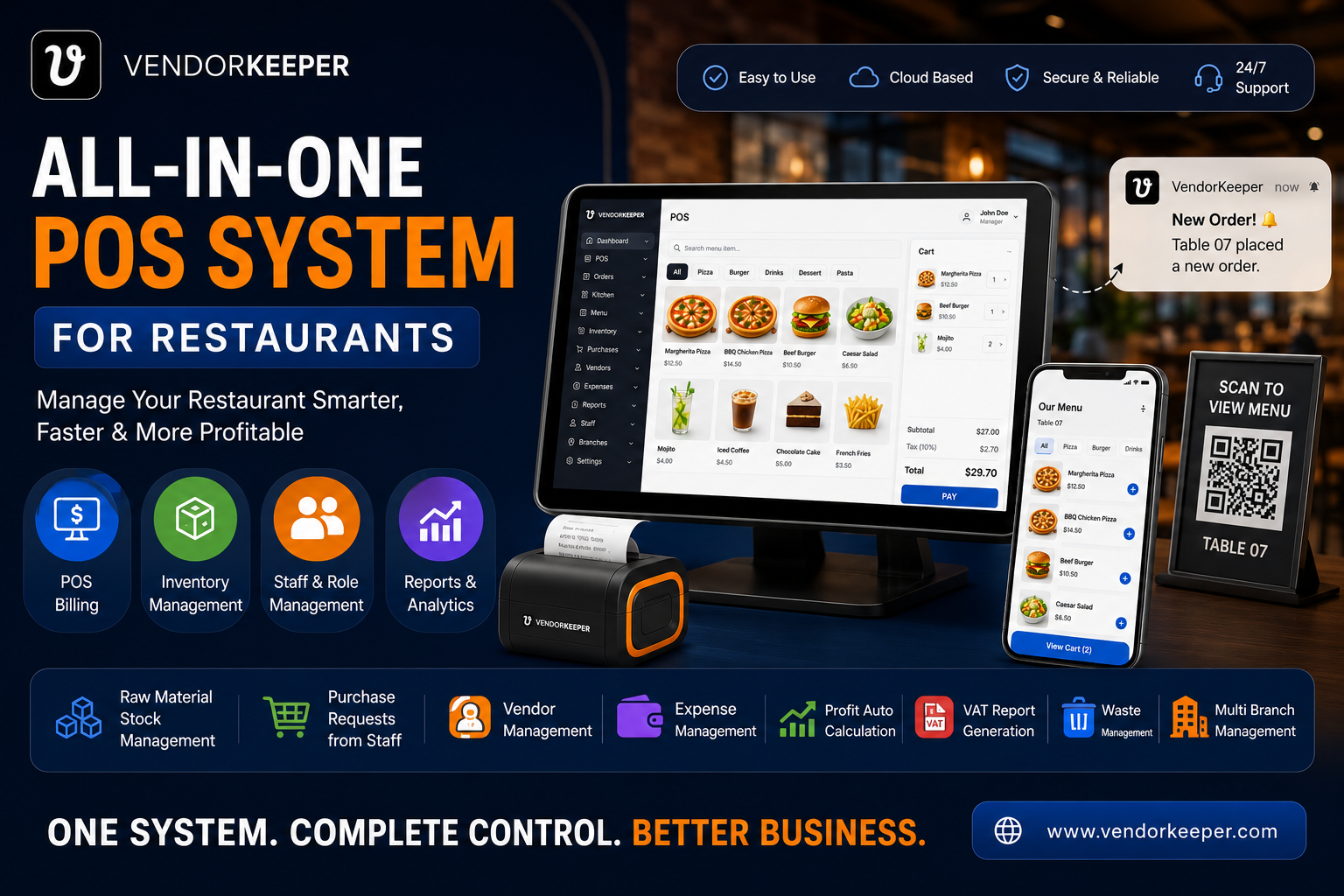
The Complete Guide to Setting Up a Restaurant POS System for Your Bangladesh Shop
Whether you're opening a new shop or upgrading from a manual register, setting up your first proper restaurant POS system is one of the most impactful decisions you'll make for your business.
Done right, it means faster checkout, accurate inventory, effortless VAT compliance, and data-driven decisions. Done wrong, it means an expensive piece of software nobody uses correctly.
This guide walks you through everything — step by step.
What You Need Before You Start
Hardware Checklist
| Hardware | Purpose | Estimated Cost (BDT) |
|---|---|---|
| Windows PC or Android Tablet | Main POS terminal | ৳25,000 – ৳80,000 |
| Thermal Printer (USB/BT) | Print receipts | ৳3,500 – ৳12,000 |
| Barcode Scanner | Scan product barcodes | ৳1,500 – ৳6,000 |
| Cash Drawer (optional) | Secure cash storage | ৳3,000 – ৳7,000 |
| UPS/IPS | Power backup | ৳5,000 – ৳20,000 |
VendorKeeper works with virtually all standard USB, Bluetooth, and LAN thermal printers available in BD markets. No proprietary hardware lock-in.
Documents to Prepare
- Business Trade License (for VAT setup)
- BIN number (if VAT registered)
- Product list or existing inventory data (Excel format accepted for bulk import)
Step 1: Install VendorKeeper
VendorKeeper is available on:
- Windows App — download from the Microsoft Store
- Android App — download the APK from vendorkeeper.com
- Web Dashboard — access from any browser at app.vendorkeeper.com
For a new shop, start with the Windows desktop app for your main counter and the Android app for mobile monitoring.
Step 2: Business Profile Setup (15 minutes)
Enter your business details:
- Shop name and address
- BIN number and VAT registration type
- Currency (BDT or multi-currency if international)
- Tax rates per product category
- Receipt header (customized with your logo)
Your first Mushak 6.3 receipt will be ready to print immediately after this step.
Step 3: Import Your Product Catalog
Option A: Bulk Import from Excel Export your existing product list to the VendorKeeper CSV template. Upload the file — all products are imported in minutes. 10,000+ products can be imported in a single batch.
Option B: Manual Entry For new shops with smaller catalogs (under 200 products), add products one by one. Each product needs: name, Menu Item/barcode, purchase price, selling price, and VAT category.
Option C: Barcode Scan Import Scan product barcodes with your scanner — VendorKeeper recognizes standard EAN-13 and QR barcodes and auto-fills product information where available.
Step 4: Configure Your Cashier Accounts
Create separate login accounts for each cashier:
- Assign a username and PIN
- Set permission level (Cashier cannot access management reports; Manager can)
- Each session logs all transactions to that cashier's account for accountability
Step 5: Connect Your Printer
Follow the printer setup guide in VendorKeeper's settings:
- USB printers: Plug in, select port, print test receipt
- Bluetooth printers: Pair device, select in app, print test receipt
- LAN printers: Enter IP address, print test receipt
Most thermal printers available in BD markets work out of the box.
Step 6: Run a Test Transaction
Before going live:
- Create a ৳10 test sale with a product
- Verify the receipt prints correctly with VAT details
- Check the transaction appears in your sales report
- Test the void/return workflow
If the test passes, you're ready for real customers.
Step 7: Train Your Cashiers
VendorKeeper's POS interface is intentionally simple. A new cashier typically reaches full proficiency within:
- 30 minutes for basic sales and receipt printing
- 2-3 hours for full feature fluency including returns, discounts, and split payments
The mobile app supports Bangla language labels for all-level users.
Going Live: Day One Checklist
- Opening cash balance entered into drawer log
- All cashiers logged in on own accounts
- Thermal printer test receipt confirmed
- Low-stock alert thresholds set for top 20 items
- Manager mobile app installed and connected to live dashboard
Call Now: +8801866541002 — Our team will guide you through setup via WhatsApp or video call, completely free.