How to Set Up a Barcode and QR Inventory System for Your Restaurant
In the fast-paced world of restaurants, operational efficiency is determined by speed and accuracy. Imagine running a busy food business, clothing café, or electronics shop with thousands of unique items on the shelves. When a customer walks up to your checkout counter to purchase a cart full of goods, how does your cashier ring up the transaction?
If your staff must manually search for product names on a screen, type in prices, or look up handwritten price lists, you face several major business risks:
- Long Checkout Queues: Manual keying takes anywhere from 10 to 30 seconds per item, causing massive bottlenecks during rush hours.
- High Human Entry Errors: Cashiers can easily select the wrong product size, apply incorrect prices, or key in wrong quantity figures, leading to corrupted financial ledgers.
- Stock Tracking Discrepancies: If your register does not deduct the exact item variant sold, your inventory reports will never match your physical warehouse stock.
To eliminate checkout bottlenecks, prevent human keying errors, and achieve 100% accurate stock tracking, you must establish a digital Barcode inventory system. It is the single most effective upgrade you can make for your Shop Management.
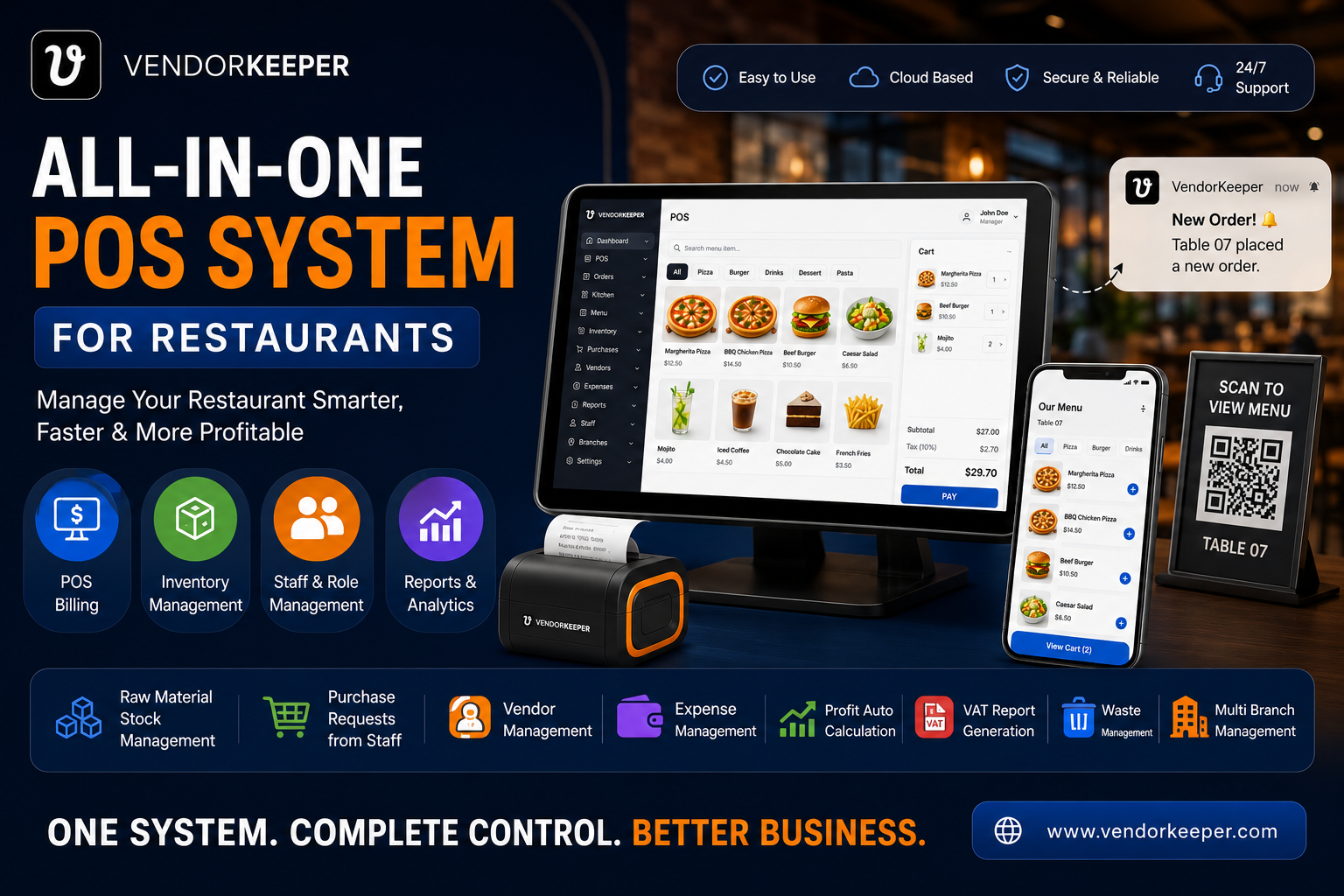
In this comprehensive, step-by-step guide, we will outline the ultimate checklist to set up a barcode and QR inventory system in your store, and explain why VendorKeeper is the absolute Best POS system to run an automated, barcode-optimized restaurant checkout.
What is a Barcode Inventory System?
A barcode inventory system is an operational framework that assigns a unique digital barcode or QR code to every product variant in your store. The system consists of three integrated components:
- The Barcode Sequence: A unique series of black lines (such as UPC or EAN codes) or a two-dimensional grid (QR code) that represents a specific product ID.
- The Barcode Hardware: An optical scanner connected to your register terminal to read the printed codes, or a mobile app that utilizes a device's camera.
- The Barcode Software: A point-of-sale database that maps the scanned barcode sequences to specific product names, retail prices, wholesale costs, and stock levels.
When an item's barcode is scanned at checkout, the POS software queries its database, retrieves the product details in less than a millisecond, adds the item to the customer's cart, and subtracts the exact quantity from your inventory.
4 Steps to Set Up a Barcode System in Your Store
Transitioning your restaurant to an automated barcode inventory system is incredibly easy and can be completed in four structured steps:
Step 1: Audit and Categorize Your Product Menu Item Catalog
Before printing tags, compile a comprehensive list of all your products, including variant details (such as sizes and colors for apparel). Group similar products together and assign a unique Menu Item (Stock Keeping Unit) code to each item.
Step 2: Acquire Barcodes for Your Inventory
- Manufacturer Barcodes: If you sell pre-packaged consumer goods (e.g., branded snacks, cosmetics, or electronics), use the existing barcodes printed on the packaging. Simply scan these barcodes into your POS database.
- Custom Café Barcodes: If you sell local designer clothing, custom jewelry, or bulk foods that do not feature pre-printed barcodes, use your POS system to generate custom barcode sequences (such as EAN-13 or Code 128 formats) for each item variant.
Step 3: Print and Attach Custom Barcode Labels
Use a standard desktop thermal label printer to print your custom barcodes onto adhesive stickers or clothing hangtags. A professional label should include:
- Your restaurant name.
- The product name and variant details (e.g., Classic Shirt - Blue - Medium).
- The retail price.
- The printed barcode pattern.
Sticky tags should be attached securely to packaging, while apparel items should have hangtags attached via plastic fastners.
Step 4: Configure Your Scanners and Start Selling
Connect standard USB, Bluetooth, or Wi-Fi barcode scanners to your register terminals. Once configured, your cashiers can start processing checkouts instantly simply by scanning item tags.
Reconciling Stock: Reorder Points and Supplier Purchase Orders
A barcode POS does more than just speed up sales—it automates your entire purchasing cycle. Reconciling inventory and managing supplier orders can be structured into a seamless workflow:
                INVENTORY LEVEL DROPS BELOW SAFETY THRESHOLD
                 (System triggers automated low-stock alert)
                                     │
                     GENERATE DIGITAL PURCHASE ORDER (PO)
                    (Add required items to supplier invoice)
                                     │
                    RECONCILE DELIVERED wholesale GOODS
                  (Scan barcodes at dock to auto-update stock)
By connecting your barcode registers with built-in supplier ledgers, you eliminate manual stock-in logs and prevent wholesalers from sending incorrect quantities or overcharging.
VendorKeeper: The Definitively Barcode-Aware Business POS
Designed to deliver absolute hardware freedom and complete operational automation, VendorKeeper features a native, high-performance barcode engine built directly into its core database.
┌────────────────────────────────────────────────────────┐
│               VENDORKEEPER BARCODE TECH                │
├──────────────────────────┬─────────────────────────────┤
│  Android Play Store App  │  Use your phone's camera    │
│                          │  as a high-speed scanner!   │
│  Windows Desktop App     │  Counter PC integrates with │
│                          │  standard USB label printers│
│  Web / Cloud Interface   │  Bulk upload barcodes via   │
│                          │  standard CSV spreadsheets  │
├──────────────────────────┴─────────────────────────────┤
│  Works Fully Offline: Scan and deduct without internet!│
└────────────────────────────────────────────────────────┘
📱 Android Play Store Native App (Download in Seconds)
Equipping every floor staff member with dedicated, industrial handheld barcode readers is incredibly expensive. With VendorKeeper, you do not need to buy specialized scanner hardware. Our native Android app (available for free download on the Google Play Store) turns any standard smartphone or tablet camera into a high-speed, highly responsive barcode scanner. Staff can walk through the aisles, scan hangtags using their phone camera, check real-time stock levels, and take table-side orders on the go.
- Get the Android app on Google Play Store: VendorKeeper on Play Store
🔌 True Offline Performance: Always Functional
What happens to your barcode checkouts if your store's internet router fails mid-day? With legacy systems or generic cloud-only POS systems, barcode queries will freeze, halting your entire checkout queue.
VendorKeeper completely solves this with its highly advanced, local-first database architecture. The software works fully in offline mode. Even during a complete internet blackout, cashiers can continue scanning, billing, and printing receipts, while restaurant servers can keep taking table orders on their Android devices. The devices communicate securely over your local Wi-Fi router without requiring active internet. The moment a network connection is restored, all offline transactions automatically sync back to your centralized cloud sales reports.
💻 Windows Desktop App for Counter Terminals
For standard cash counters that manage high-volume daily checkout lines, VendorKeeper offers a native, high-performance desktop application for Windows (available for download on the Microsoft Store), alongside a comprehensive back-office portal accessible via any Web browser for detailed supplier ledger management and multi-branch reports.
Feature Comparison: VendorKeeper vs. Generic Business POS
| Barcode Capability | Generic Restaurant POS | Legacy Cash Registers | VendorKeeper POS |
|---|---|---|---|
| High Menu Item Counts (10,000+) | Slows down interface | No barcode support | Optimized local-database indexing |
| Android Camera Scanning | Missing or slow | No mobile options | Instant native camera scanner code |
| Offline Barcode Queries | Freezes during outage | Local only (no cloud backup) | 100% operational offline-first mode |
| Custom Label Printing | Third-party add-on | No printing tools | Integrated product label generator |
| Bulk Barcode CSV Import | Complex upload | No import tools | One-click Excel spreadsheet import |
| Supplier Balances | Notebook tracking | Missing | Integrated vendor & credit ledgers |
4 Best Practices for Running a Barcode Inventory System
To squeeze maximum efficiency out of your barcode system using VendorKeeper, implement these four proven restaurant strategies:
- Verify Every Code During Stock-In: When new wholesale shipments arrive, do not take the quantities on trust. Reconcile the delivered boxes against your VendorKeeper Purchase Order by scanning the barcodes during stock-in. This keeps your stock counts 100% accurate.
- Utilize Reorder Points Natively: Set custom safety thresholds in VendorKeeper for your best-selling items. By receiving early warnings before stock runs dry, you can aggregate multiple low-stock items into a single, high-volume purchase order, enabling you to demand better shipping rates.
- Log All Damaged Goods Immediately: Stained clothes, loose buttons, and open boxes represent inventory "damage." Log these items in VendorKeeper's damage and waste module immediately. This keeps your theoretical inventory perfectly aligned with physical storage room reality.
- Train Cashiers on Keyboard Shortcuts: While barcode scanning is incredibly fast, some items may have damaged labels. Train your cashier staff on standard keyboard shortcuts in the Windows app to quickly search for products by Menu Item or name, keeping checkout lines moving.
Frequently Asked Questions (FAQs)
What is EAN-13 vs. Code 128 barcode format?
EAN-13 is a standard numerical barcode format used globally for pre-packaged consumer restaurant goods. Code 128 is a highly flexible alphanumeric barcode format used to generate custom Menu Item sequences for internal store tracking, café clothing, or hardware parts. VendorKeeper supports EAN-13, Code 128, and QR formats.
Does VendorKeeper require a specialized barcode scanner?
No. VendorKeeper is designed with complete hardware freedom in mind. You can connect any standard, affordable USB or Bluetooth barcode scanner to your Windows terminal or Android tablet. Additionally, our native Android app allows you to use your smartphone's camera to scan barcodes directly.
Can I run my barcode checkouts if my internet is down?
Yes. VendorKeeper's local-first database architecture stores your entire drugstore product catalog, pricing, batch details, and customer records directly on your Windows PC, phone, or tablet. This allows you to run full billing operations, scan barcodes, and print invoices without any internet connection. Once your network is restored, all data syncs automatically to the cloud.
Can I track what I owe to suppliers after scanning deliveries?
Yes. VendorKeeper includes a built-in Vendor & Supplier module. You can log bulk purchase invoices, record cash or bank payments made, track unpaid credit balances, and review full supplier ledger transaction histories from a single centralized dashboard.
Conclusion
Succeeding in today's highly competitive restaurant industry requires operational excellence. You cannot afford to lose customer trust or profit margins to slow checkout lines, human keying errors, or inventory discrepancies.
By upgrading to a modern, barcode-aware, offline-capable, and multi-platform Point of Sale system like VendorKeeper, you gain absolute control over your stock, checkout speed, and supplier accounts. Download the VendorKeeper Android application from the Google Play Store today, or set up our Windows and Web applications to take complete control of your store's future!